Settings
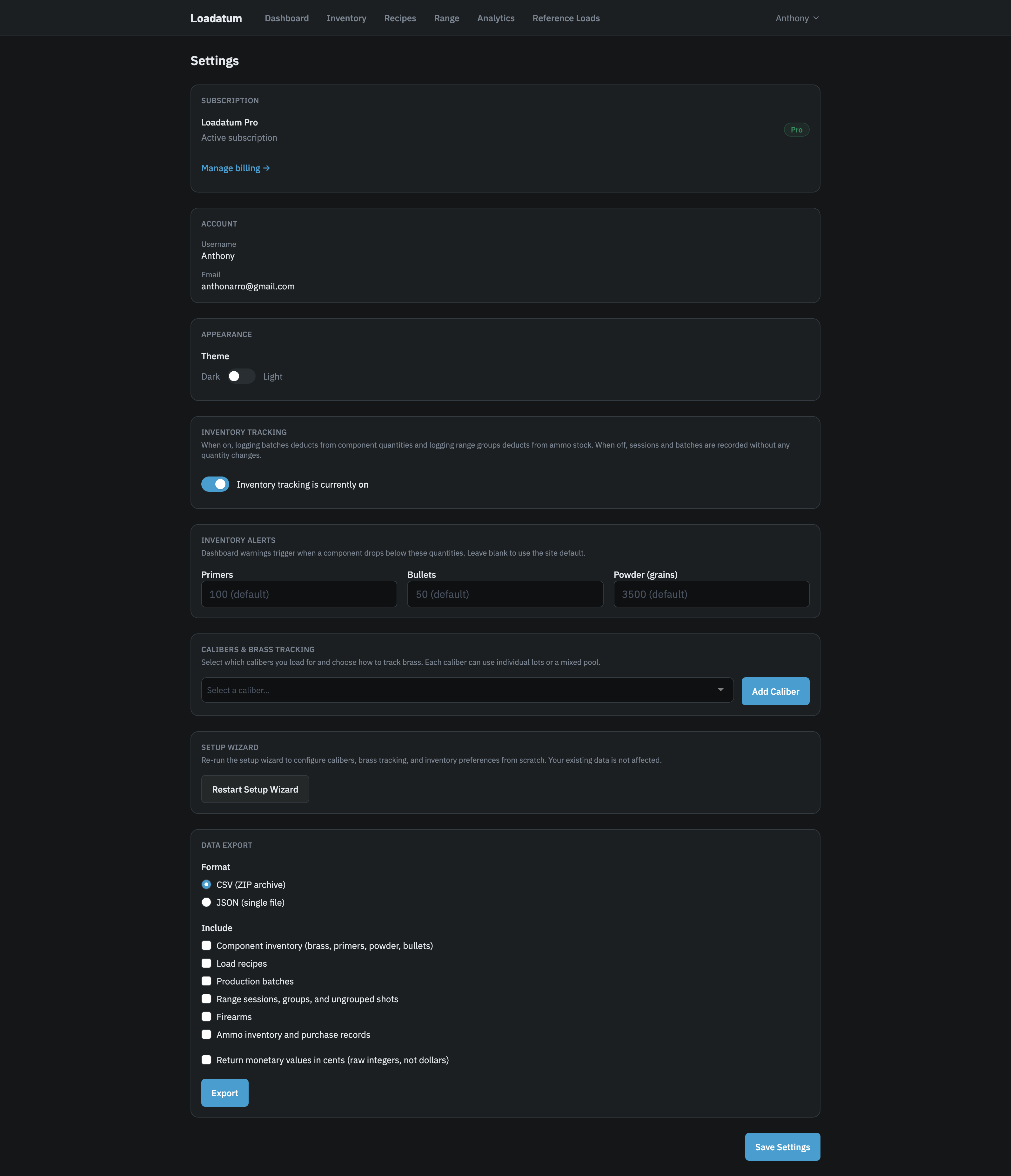
The Settings page at /settings controls your theme, inventory tracking, low-inventory alert thresholds, caliber and brass tracking preferences, and data export. Most fields save when you tap Save Settings at the bottom of the page. The theme applies immediately when you switch it.
Account
Your username and email address are shown here for reference. Neither can be changed from the Settings page.
Appearance
Choose between Dark and Light themes. The change applies immediately across the entire app without a page reload.
Inventory Tracking
When inventory tracking is on, logging a batch deducts from your component quantities and logging a range group deducts from ammo stock. When it is off, sessions and batches are recorded without any quantity changes.
Toggling the switch opens a confirmation modal before any change is made. Turning tracking off preserves all your existing inventory data. Turning it back on gives you two options: keep your existing quantities as-is, or clear component inventory and start fresh. Clearing removes brass, primers, bullets, and powder quantities only. All historical sessions, batches, and analytics are preserved either way.
Inventory Alerts
These thresholds control when the Dashboard Inventory Warnings card flags a component as running low. Enter a quantity for primers, bullets, or powder (in grains). Leaving a field blank applies the site default: 100 primers, 50 bullets, and 3,500 grains of powder.
Calibers and Brass Tracking
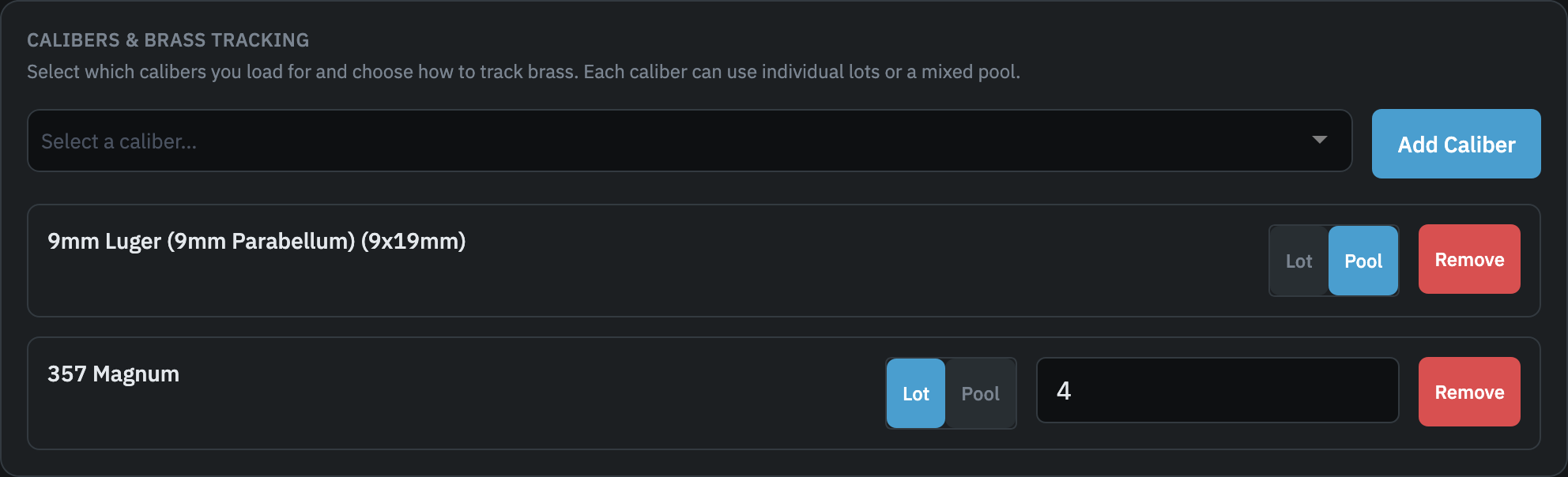
Add each caliber you load for by selecting it from the dropdown and tapping Add Caliber. Once added, each caliber has its own row where you can configure the tracking mode and retirement threshold.
Each caliber uses one of two brass tracking modes:
- Lot: tracks individual lots, each with its own times-fired count. The default mode. See the Brass article for a full description of how lot tracking works.
- Pool: treats all brass of that caliber as a single running quantity with no per-lot history.
Switch between modes using the Lot and Pool buttons on the caliber row. When switching from pool back to lot mode, if the pool quantity exceeds the sum of existing lot quantities, a modal appears to handle the difference before the switch completes.
In lot mode, a retirement threshold field appears on the caliber row. This is the times-fired count at which the app considers brass due for retirement. Leave it blank to use the global default of 5 firings. A per-lot max firings value set on the lot itself takes priority over this field. See the Brass article for the full threshold resolution order.
To remove a caliber, tap Remove on its row and confirm the prompt. Removing a caliber in pool mode with unaccounted cases will then prompt you to allocate or discard them before the removal completes.
Setup Wizard
Tap Restart Setup Wizard to go through the initial caliber and tracking configuration again from scratch. Your existing data is not affected.
Data Export
This is a Pro feature.
Export your data as a CSV archive or a single JSON file. Select the format, then check which data types to include:
- Component inventory: brass, primers, powder, bullets
- Load recipes
- Production batches
- Range sessions, groups, and ungrouped shots
- Firearms
- Ammo inventory and purchase records
When ammo inventory is selected, an Ammo scope option appears: choose Factory ammo only or All ammo inventory to include both factory and handloaded records.
Check Return monetary values in cents if you want cost figures as raw integers rather than dollar amounts. Tap Export to download. Exports are rate-limited to one per minute.