Adding and managing firearms Pro
The Firearms section lets you record the guns you load for and shoot. Each firearm can be assigned one or more compatible calibers, which connects it to your recipes, range groups, and per-firearm analytics. Once a firearm is saved, you can access its analytics and maintenance pages directly from the list.
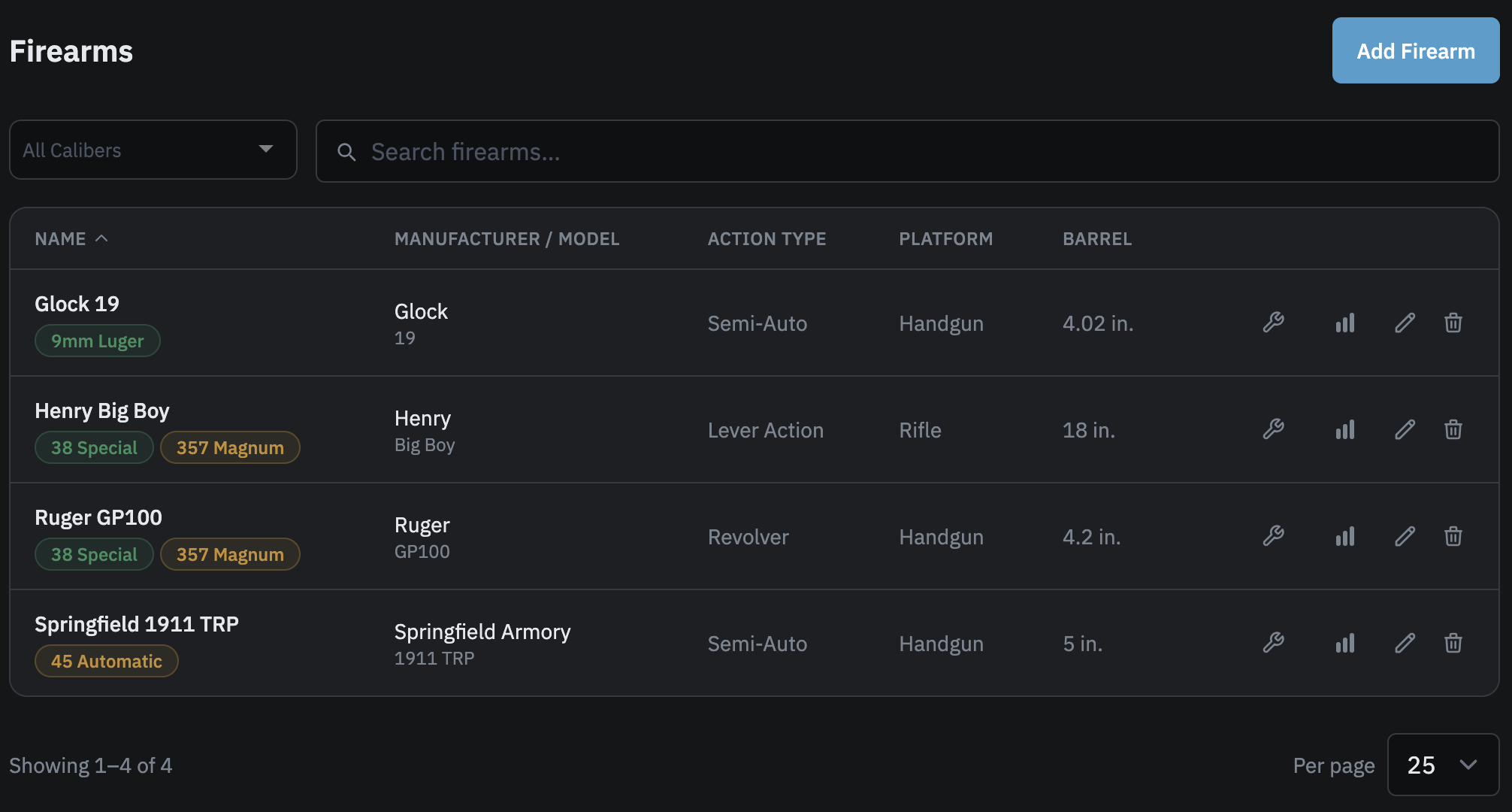
Adding a firearm
Go to Inventory, then Firearms, and tap Add Firearm. Name and caliber are required. All other fields are optional and can be filled in later by editing.
- Name: what you call the gun. Up to 150 characters.
- Calibers: select one or more calibers this firearm is chambered for. A revolver that fires both .357 Magnum and .38 Special gets both assigned. At least one is required.
- Manufacturer / Model: the make and model. Both optional.
- Platform Type: Handgun, Rifle, or Shotgun. Helps distinguish firearms that share the same action type. A semi-auto pistol and a semi-auto rifle are both Semi-Auto, but only one is a Handgun. Used to segment velocity analytics by platform. Firearms without a platform type still appear in the velocity chart under an "Other" group. Optional.
- Action Type: Revolver, Semi-Auto, Bolt Action, Lever Action, Single Shot, or Other. Optional.
- Barrel Length: in inches, between 1 and 36. Optional.
- Serial Number: stored privately for your own records. Optional.
- Notes: free text for trigger work, optics, modifications, or anything else you want to remember. Optional.
Uploading a photo
You can attach a photo to any firearm from the add or edit form. Click the upload area or drag and drop a file onto it. Accepted formats are JPEG, PNG, and WebP. The maximum file size is 10 MB.
Once you select a file, a preview appears with a square crop box over it. Drag the box to reposition the crop, or drag any corner handle to resize it. The crop is applied when you save, and the stored image is always square. Photos are also resized to 1920 pixels wide after cropping.
To replace an existing photo, open the edit form and upload a new file. The current photo is shown in the upload area until you select a replacement. To remove a photo without replacing it, click Remove photo in the edit form before saving. The removal only takes effect when you save.
The companion mobile app supports the same photo upload and cropping.
Editing a firearm
Click the edit button (pencil icon) on any row in the firearms list to open the edit form. Any field can be updated, including calibers. Tap Save Changes when done.
Deleting a firearm
Click the delete button (trash icon) on a row, then confirm. The firearm is removed from your list and cannot be restored. Any attached photo is deleted at the same time.
Range session records that referenced the firearm are preserved in your history. The firearm will no longer appear in your list or be available when logging new range groups.
Analytics and maintenance
Each row in the firearms list has two icon buttons on the right side. The chart icon goes to that firearm's analytics page (rounds fired, best load, velocity data). The wrench icon goes to maintenance tracking, where you can set cleaning and service thresholds and log maintenance events.
For details on each, see Firearm analytics and Maintenance tracking.