Logging a production batch
A batch is a production record: a specific run of rounds loaded against a recipe on a specific date. It records the identifier, date, charge weight, quantity, and optionally the actual COAL and seating depth. When a batch is saved, the app deducts all four components from inventory and tracks the resulting rounds as available ammo. The edit form lets you change any field after the fact, with inventory adjusted automatically.
Opening the batch form
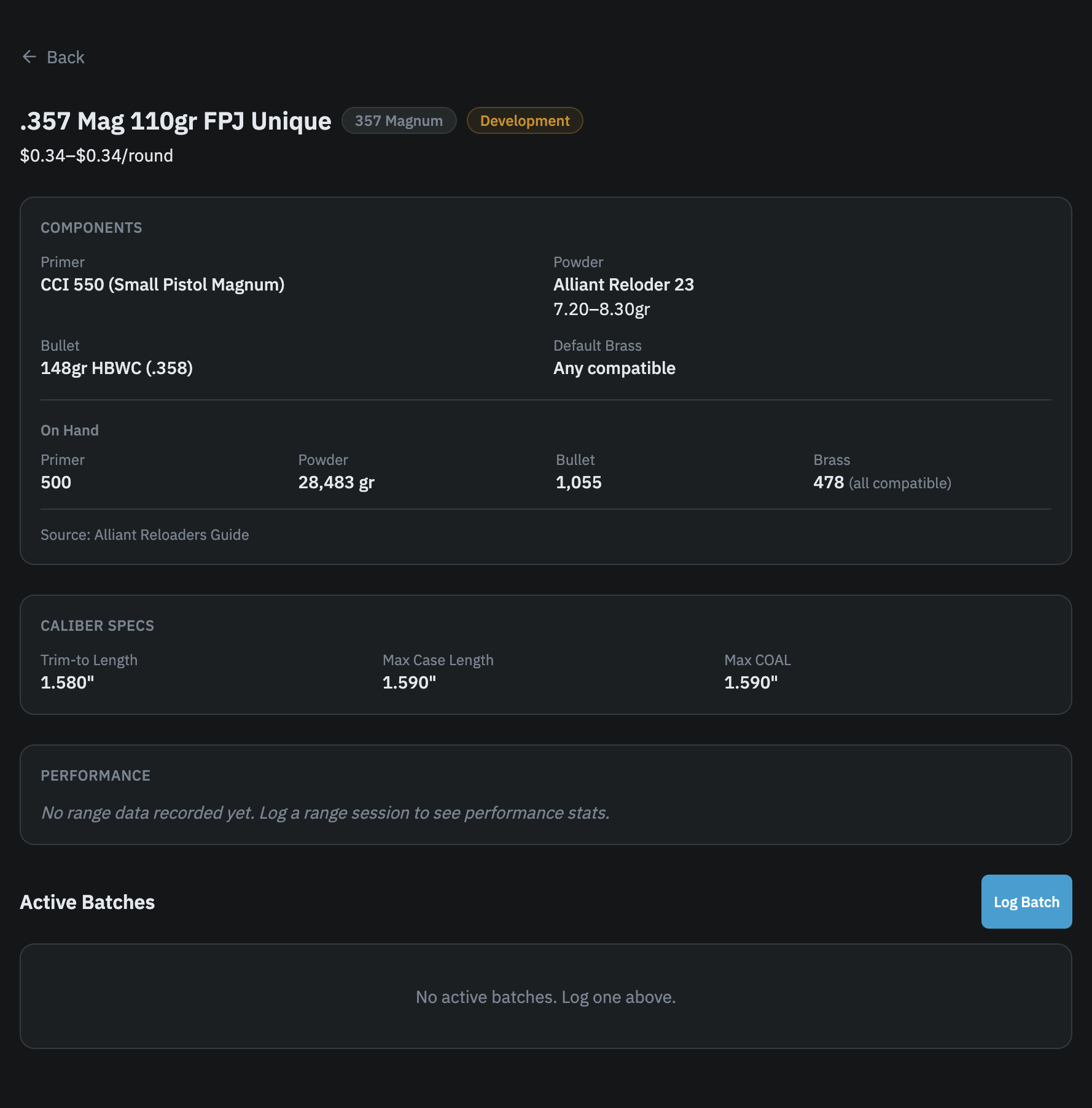
Go to Recipes, tap a recipe to open its detail page, then tap Log Batch. The form is specific to that recipe and prefills today's date.
Batch identifier
Every batch gets a unique identifier. When the form opens, one is generated automatically based on the caliber code and a short random string (for example, 308-A1B2C3). You can edit it to use your own naming scheme. If you want to go back to the generated value, tap Autofill batch identifier below the field. The identifier is required before saving and must be unique across all your batches.
Date and quantity
Enter the date you loaded and the total number of rounds produced. The quantity drives all inventory deductions, so it should reflect actual finished rounds.
Charge weight
Enter the charge weight in grains as thrown that day. The form shows the recipe's min and max as a reference below the input. If your powder has a lot number recorded in inventory, that appears here too.
If the value you enter falls outside the recipe's range, the app shows a warning: "Charge weight is outside the recipe bounds. Double-check before logging." The batch still saves. Reloaders intentionally load outside published ranges, so this check is advisory only.
Actual COAL
Optional. Enter the COAL you actually seated to in decimal inches (for example, 1.169). This is separate from the COAL target on the recipe. If the recipe has a target COAL set, the form shows it as reference text below the input.
Seating depth
Optional. Enter the seating depth in decimal inches (for example, 1.130). If the recipe has a seating depth target set, it appears as reference text below the input. Stored in thousandths of an inch alongside the COAL value.
Brass
The brass section looks different depending on how you track brass for this caliber.
In lot mode, you select which brass lot or lots to draw from, enter how many cases to use from each lot, and optionally how many to retire (cases discarded during inspection that you don't want to return to inventory). The total "use" quantities must equal the quantity loaded. You can split a batch across multiple lots using the "Add brass lot" link.
In pool mode, the form shows your available pool count for the caliber and optionally lets you enter how many to retire. No individual lot selection is required. The brass tracking mode is configured per caliber in your inventory settings.
Component overrides
The batch uses the primer and bullet from the recipe by default. If you substituted a different primer or bullet for this run, check "Use a different primer" or "Use a different bullet." A selector expands showing inventory you have on hand. The override affects inventory deduction for that batch only; the recipe itself is unchanged.
Notes
Optional free text for anything relevant to this run: scale consistency, interruptions, observations about the finished rounds.
What happens when you save
All four components are deducted from inventory inside a single transaction: brass by the quantities entered, primers and bullets by the quantity loaded, and powder by charge weight multiplied by quantity loaded. The cost per round for each component is snapshotted from your inventory prices at save time and stored on the batch. A rounds-available record is created so the batch appears as ammo you can shoot.
If you have inventory tracking disabled in settings, no deductions occur and no cost data is stored, but the batch is still recorded.
Editing a batch
Tap the edit icon on any active batch card to open the Edit Batch form. All fields are editable: identifier, date, quantity, charge weight, COAL, seating depth, primer and bullet overrides, brass entries, and notes.
How inventory changes when you save depends on whether this batch was originally logged with inventory tracking on. If it was, and you change the quantity, charge weight, or swap to a different primer or bullet, a dropdown appears letting you pick which lot to draw from for that component. The app returns the old amount and deducts the new amount from the lot you choose. If nothing relevant changed for a component, its lot is left untouched automatically. You do not enter recovered amounts manually.
If the batch was logged while inventory tracking was off, the edit form has no lot or brass controls at all. Every other field is still editable, but saving shows a confirmation explaining that inventory data will not be affected.
The form shows how many rounds have already been fired from this batch. That number is the floor: you cannot set quantity loaded below it.
If you reduce the quantity and inventory tracking is enabled, a confirmation step appears before the save completes. This is a reminder that components will be returned to inventory. Confirm to proceed.
For batches created before identifiers were added, the form generates a new identifier automatically. You can edit it before saving.
Deleting a batch
The delete icon appears on every batch card, active or inactive. Tapping it opens the Delete Batch dialog.
If any range groups have been logged using rounds from this batch, the dialog shows a block message instead of the recovery form: "This batch cannot be deleted because range data has been logged against it. Remove the range groups first." No deletion happens until those groups are removed.
If there are no range groups, the dialog shows a component recovery form. This is your chance to return unfired components to inventory before the batch is erased. The maximums shown reflect the rounds still in this batch, not the original quantity loaded. Rounds you have already fired cannot be recovered.
- Primers and bullets: capped at the number of remaining (unfired) rounds.
- Powder: capped at remaining rounds multiplied by the charge weight.
- Brass: shown per lot, each capped at the remaining unshot rounds. You cannot recover more cases than rounds still in the batch. Enter only what you physically have in hand.
All fields start empty and must be filled before confirming. Enter 0 for any component you do not want to return to inventory. Tap Delete & Return Components to confirm.
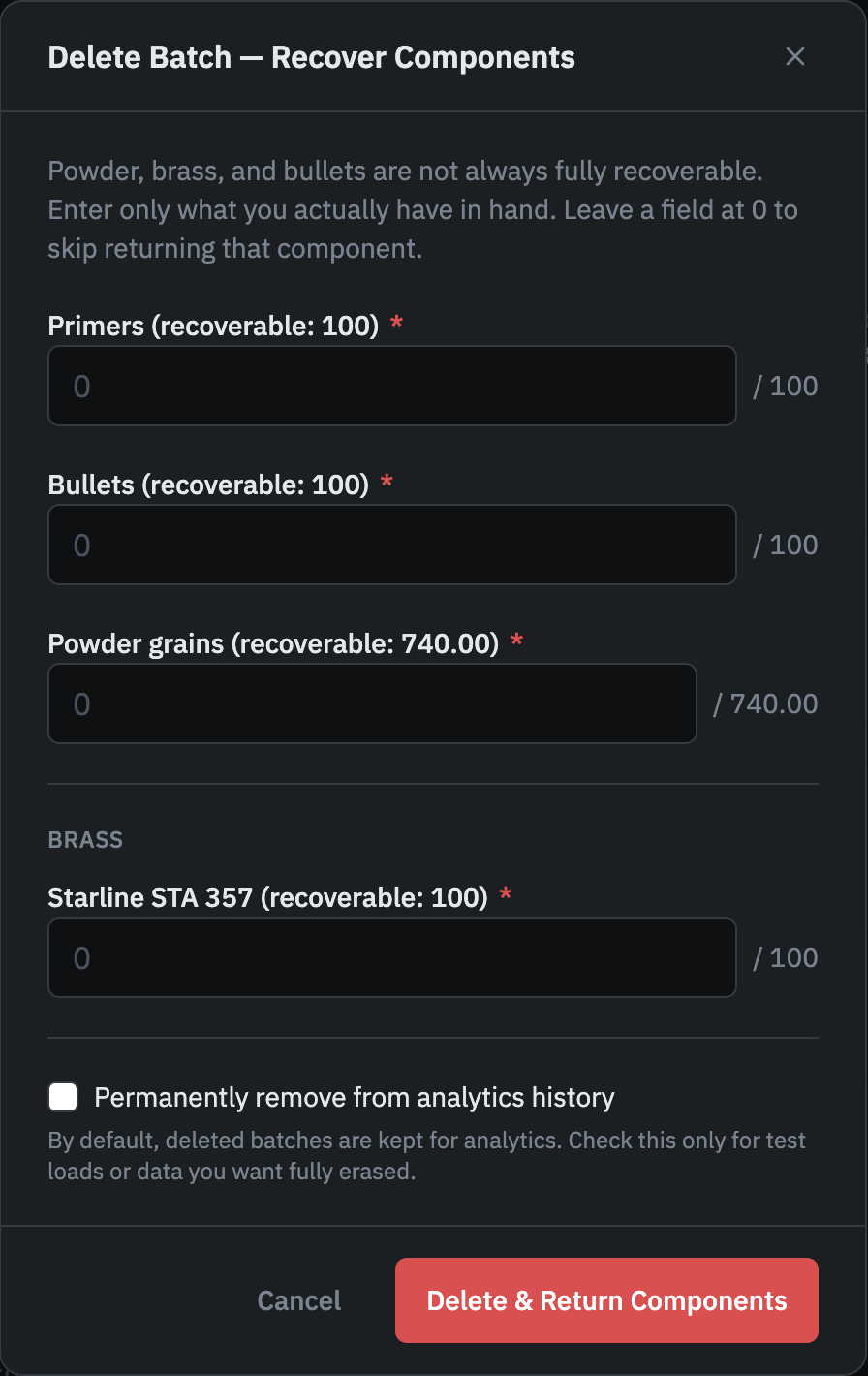
By default, the batch is preserved in your analytics history after deletion. Deleted batches still contribute to the CPR trend and monthly batch counts. To erase a batch entirely, check Permanently remove from analytics history before confirming. Use this only for test loads or data you want fully removed. The option is unchecked by default.
In pool mode, the remaining round count is returned to the brass pool automatically. There is no per-lot brass entry in that case.
If inventory tracking is disabled in settings, or if this batch was logged while tracking was off, the batch is deleted without returning any components to inventory.
Tested load snapshots
If a tested load has been marked from this batch, the edit form shows a warning that the snapshot will not be updated automatically. The tested load retains the values that were recorded when it was marked.