Maintenance tracking Pro
Maintenance tracking lets you set round-count thresholds for recurring firearm service tasks, such as cleaning after every 500 rounds or replacing the recoil spring every 3,000. When a threshold is reached, a "Due" badge appears on the threshold and an alert appears on your dashboard. Logging a maintenance event resets the counter for that task.
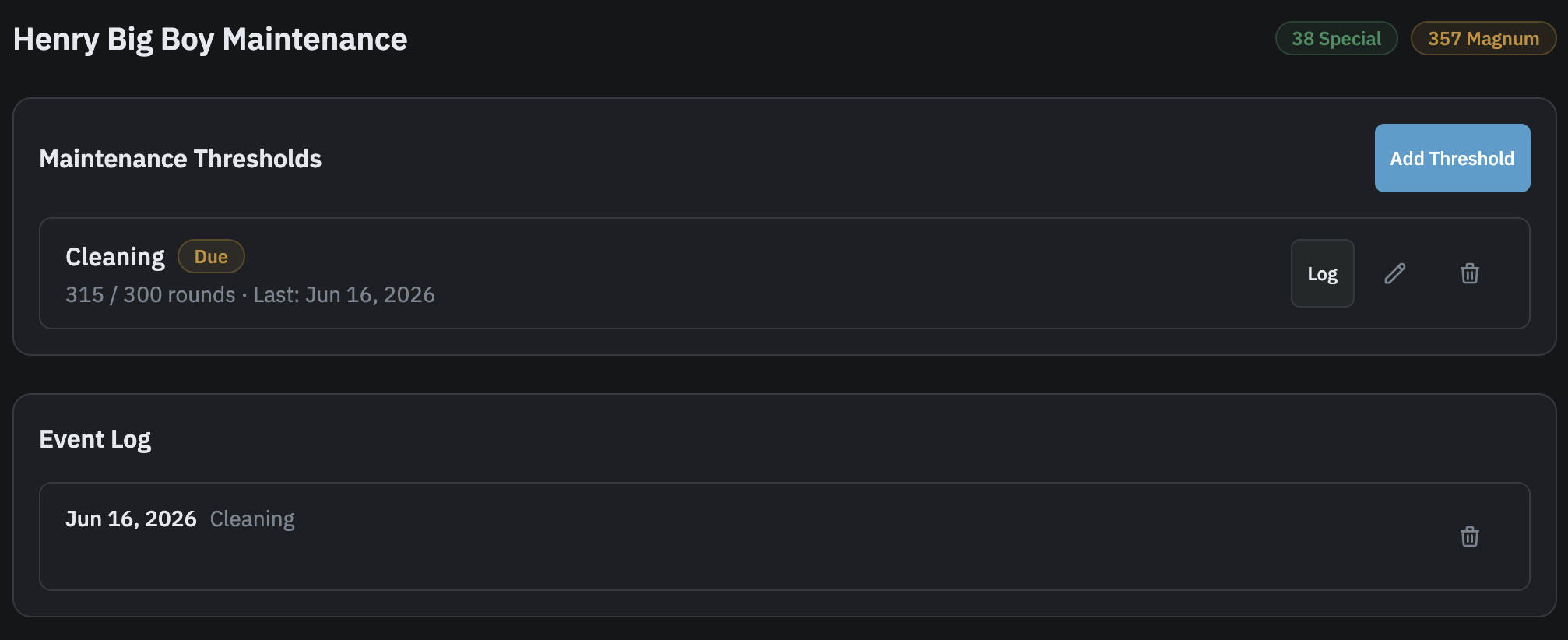
Maintenance thresholds
A threshold has two parts: a maintenance task (what to do) and a rounds threshold (how many rounds between each service). Every time you log that task, the counter resets. When rounds fired since the last logged event reach the threshold, the item is marked Due.
Each firearm can have one threshold per task. You cannot add a second "Cleaning" threshold to the same firearm, for example.
Adding a threshold
From the firearm list, click the wrench icon on any firearm to open its maintenance page. Tap Add Threshold to open the form.
The maintenance type field offers a list of common tasks (Cleaning, Lubrication, Function Check, Recoil Spring Replacement, Extractor Inspection, Firing Pin Inspection, and many more) but also accepts any task name you type. Once saved, the task cannot be changed. If you need a different task, delete the threshold and create a new one.
Set the rounds threshold to however many rounds you want between each service. Tap Save to add it.
If the firearm already has rounds on record when you add the threshold, a baseline event is created automatically. This anchors the counter to zero from that point, so the threshold will not show as immediately due. The baseline appears in the event log in a lighter, italicized style to distinguish it from events you log manually.
Logging a maintenance event
When you perform maintenance, tap Log next to the relevant threshold. This opens the log event form with the task pre-filled. Confirm the date (defaults to today) and add optional notes, then tap Log. The date cannot be set in the future.
If you set the date earlier than today (logging today a cleaning that actually happened last week, for example), a rounds baseline choice appears with two options, each showing a live preview of the round count it produces. One option counts rounds fired since that earlier date; the other shows 0 rounds since and resets the baseline to today's total, the same as logging with today's date. Pick whichever matches when the maintenance actually happened.
Logging the event resets the rounds counter for that threshold. The "Due" badge will clear, and the count restarts from the rounds total at the time you logged the event.
You can also log events from the Log Maintenance button at the top of the event log section, without starting from a threshold. This is useful for ad-hoc service that does not have a threshold set up.
Event log
The lower section of the maintenance page shows a chronological record of every event logged for that firearm: date, task, and any notes. Events can be deleted if entered by mistake.
Dashboard alerts
When any of your firearms has a threshold that has been reached (rounds fired equal to or greater than the threshold since the last logged event), an alert appears on your dashboard. Tapping the alert takes you to that firearm's maintenance page where you can log the event.